Player guide
How to use Emulator Hub
Emulator Hub runs 31 classic systems inside your browser, from the NES and Mega Drive to the PlayStation, PSP and DOS. You bring the game file (and, for some systems, a BIOS) from your own device; nothing is uploaded and nothing is provided.
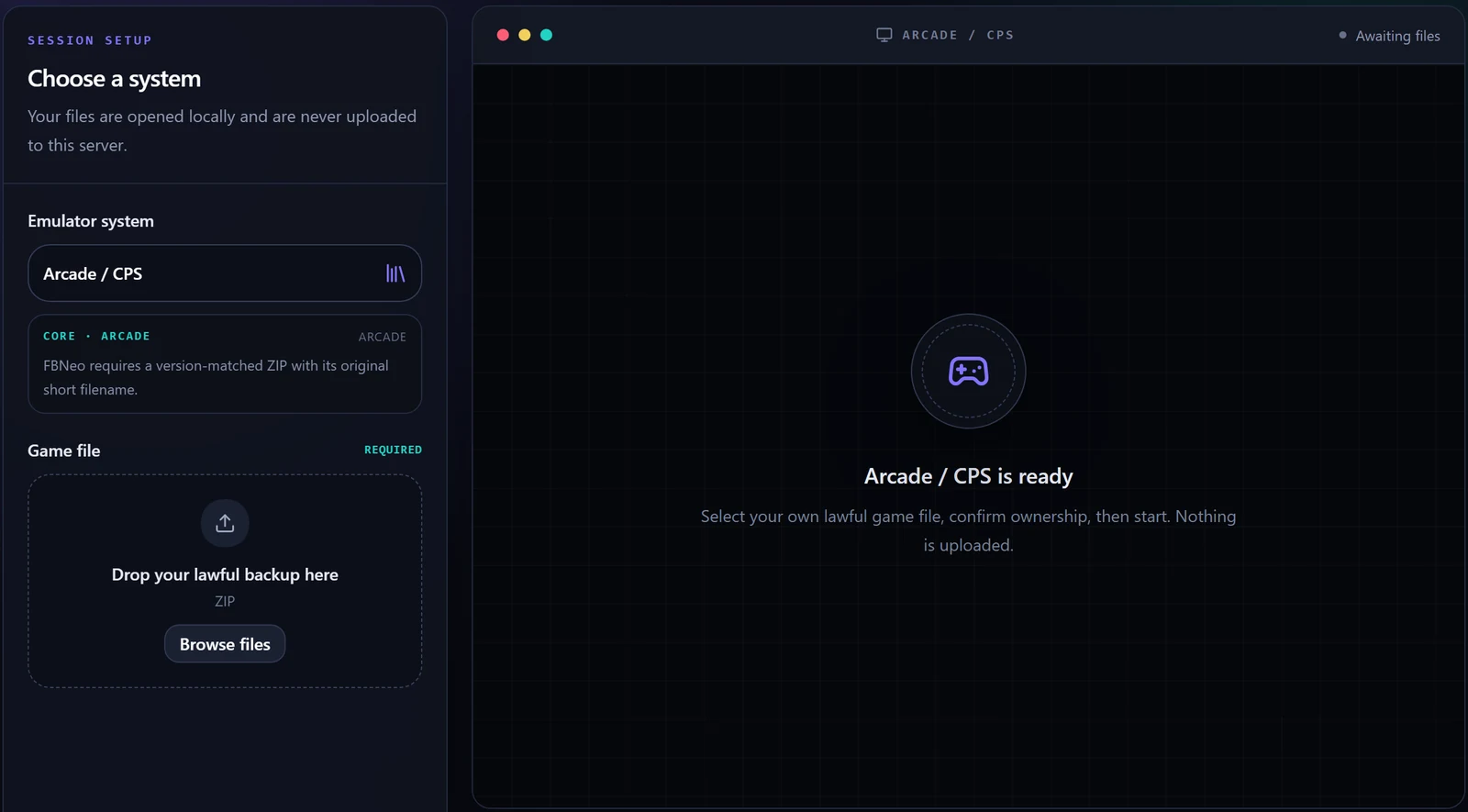
1. Choose the system
Open the Emulator system list and pick the console or computer the game was made for. A note appears under it with the core that runs it, the file types it accepts and whether it needs a BIOS. Read it: the arcade cores in particular only accept ZIPs built for that exact core.
2. Add the game file (and BIOS if asked)
- Drop the file on the dashed box or press Browse files. Accepted types are listed under the box for the chosen system; ZIP and 7Z are accepted almost everywhere.
- If the system says BIOS required, a second chooser appears. Use the file dumped from your own hardware, with the name the note gives.
- Tick the confirmation that you own or are permitted to use the file. The session cannot start without it.
3. Start and play
Press Start emulator. The first start of each system downloads its core once, so it can take a moment; later starts are quick. Move the mouse over the picture (or tap it) to reveal the emulator toolbar: fullscreen, volume, save and load state, settings, and the control mapper.
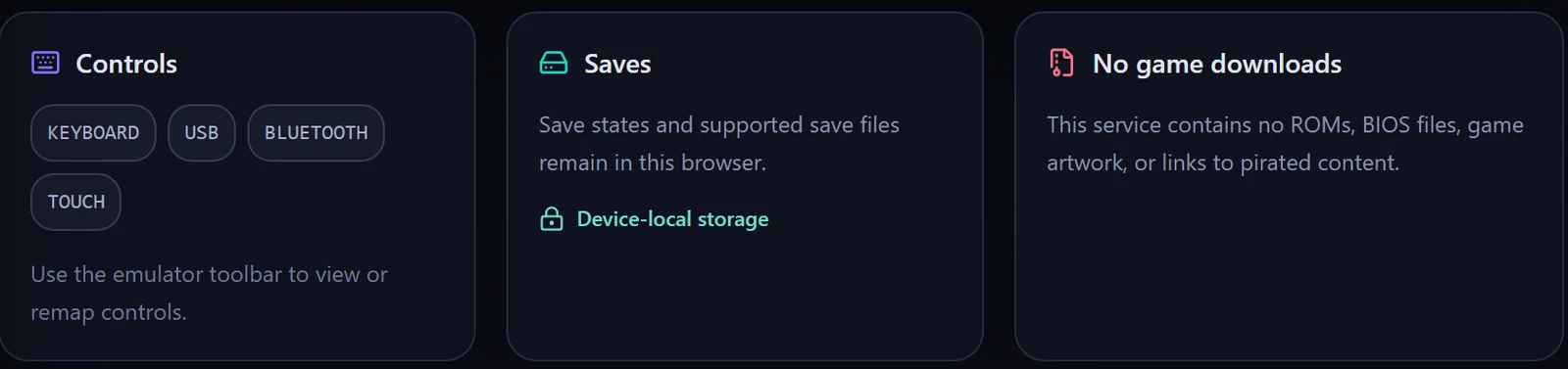
- Keyboard. The arrow keys move; the letter keys around Z, X, A and S are the action buttons, Enter is Start and V is Select on most systems. Open the toolbar’s Control Settings to see and change the map for the system you are playing.
- Gamepad. Plug in a USB pad or pair a Bluetooth one and press a button; the panel reports it and a standard layout is applied. Remap in Control Settings.
- Touch. On phones and tablets an on-screen pad appears over the picture; turn the device sideways and use fullscreen.
4. Saves
- In-game saves (battery backups, memory cards) and save states are kept in this browser’s storage on this device.
- They do not follow you to another browser or device, and clearing site data removes them. Export a save state from the toolbar for anything you want to keep, and import it later.
5. Systems at a glance
| System | Files | BIOS | Note |
|---|---|---|---|
| Arcade / CPS, MAME 2003 | ZIP | None | The ZIP must match the core (FBNeo or MAME 2003) and keep its original short filename; a set built for another version will not start. |
| NES, SNES, Game Boy, GBA, Virtual Boy | Cartridge dumps (.nes, .sfc/.smc, .gb/.gbc, .gba, .vb) or ZIP/7Z | None (GBA optional) | Light to run; fine on phones. |
| Nintendo 64, Nintendo DS | .z64/.n64/.v64, .nds, or ZIP/7Z | None | Heavier; a desktop browser is recommended. |
| Mega Drive, Master System, Game Gear, 32X | .md/.gen/.smd/.bin, .sms, .gg, .32x, or ZIP/7Z | None | Genesis Plus GX, SMS Plus and PicoDrive cores. |
| Sega CD, Saturn, PlayStation, 3DO, PC Engine CD | Disc images (CHD, CUE+BIN in a ZIP, ISO, PBP) | Required | Bring the BIOS dumped from your own console; the system note names the file the core expects. |
| PlayStation Portable | .iso, .cso, .pbp, or ZIP/7Z | None | PPSSPP uses browser threads; use a desktop browser for large games. |
| Atari 2600, 5200, 7800, Lynx, Jaguar | Cartridge dumps or ZIP/7Z | Some (5200, Lynx, 7800) required | Compatibility on Jaguar varies by title. |
| Commodore 64 / 128, Amiga, DOS | .d64/.t64/.prg/.crt; Amiga disk images; DOS games as one ZIP | Amiga Kickstart required | For DOS put the whole game folder in a ZIP; DOSBox Pure boots it. |
| ColecoVision, Neo Geo Pocket, WonderSwan, PC Engine | Cartridge dumps or ZIP/7Z | ColecoVision required | Mednafen cores. |
The system note inside the app is the authority for each core; this table is the overview.
6. When something goes wrong
- Start stays grey. Something required is missing: the file, a BIOS the system needs, or the ownership confirmation.
- An arcade game will not start. The ZIP was built for a different core version. FBNeo and MAME 2003 each need their own set, with the original short filename.
- A disc system shows a black screen. Check the BIOS file name and region, and prefer CHD or a ZIP that contains the CUE with all its BINs.
- Slow or choppy. N64, PSP, Saturn and DOS are demanding: use Chrome or Edge on a computer, close other tabs, plug in the charger.
- No sound. Click or tap the picture once; browsers only start audio after an interaction.
- DOS game asks for files it cannot find. Zip the entire game folder, not just the executable.
7. Your files, your responsibility
Emulator Hub is a bring-your-own-files interface for the open-source EmulatorJS cores. It contains no games, BIOS files, keys, cover art or links to downloads, and it has no upload endpoint. Use only files you own or are permitted to use. See the legal and privacy pages for the details.